






How to Activate Windows 11 Professional with a Product Key – Complete Guide (2025)

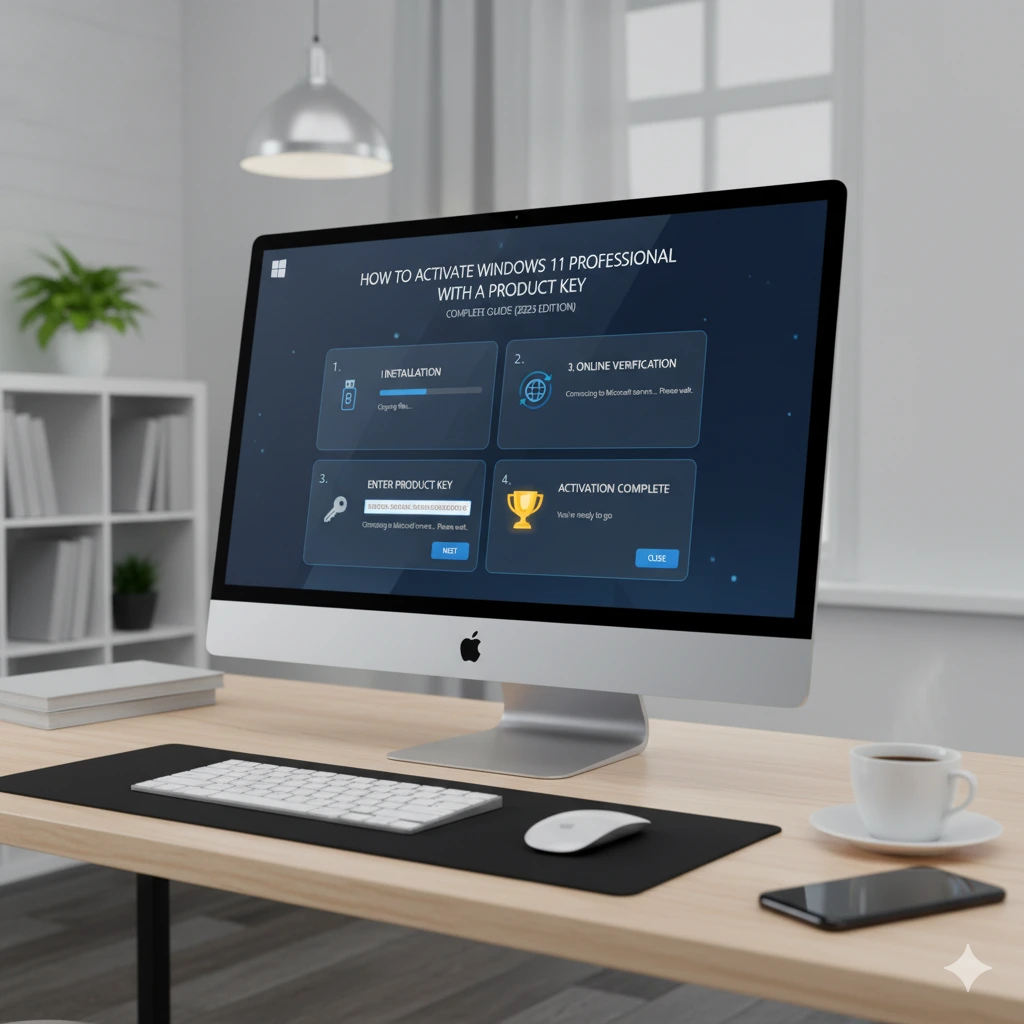
📜 Meta Description:
Learn how to activate Windows 11 Professional using a genuine product key. Step-by-step installation guide, activation methods, and common error fixes for a smooth Windows experience.
💡 Introduction
Windows 11 Professional offers the most secure and powerful experience for professionals and everyday users alike. However, without proper activation, you can’t access its full features, customization options, and updates.
In this article, we’ll show you exactly how to activate Windows 11 Professional using a genuine key, where to find reliable product keys, and how to fix activation errors if something goes wrong.
🧩 Step 1: Check Your Windows 11 Installation
Before you activate, make sure Windows 11 is installed and running properly.
To check your version:
- Press Windows + I to open Settings.
- Go to System → About.
- Confirm that your edition says Windows 11 Pro.
If you’re still on Windows 10, you can easily upgrade before activating your new license.
🔑 Step 2: Purchase a Genuine Product Key
To activate Windows 11, you need a valid activation key.
You can buy a 100% genuine Windows 11 Professional key safely and instantly from KeyExpertises.net.
Once you complete your purchase, you’ll receive your 25-character product key by email, for example:
XXXXX-XXXXX-XXXXX-XXXXX-XXXXX
⚙️ Step 3: Activate Windows 11 Using the Settings Menu
The easiest activation method is through Windows settings.
Follow these steps:
- Click Start → Settings → System → Activation.
- Select Change product key.
- Enter your new product key.
- Click Next → Activate.
After a few seconds, Windows will verify your license and activate automatically.
🧰 Step 4: Activate via Command Prompt (Alternative Method)
If the normal method doesn’t work, you can use Command Prompt as an alternative:
- Press Windows + S, type “cmd”, and right-click Command Prompt → Run as administrator.
- Type this command and press Enter:
slmgr /ipk XXXXX-XXXXX-XXXXX-XXXXX-XXXXX - Then type:
slmgr /ato - Wait a few seconds — a success message should appear confirming activation.
🚨 Step 5: Fix Common Windows 11 Activation Errors
If you see an error, try these fixes:
- 🧩 Error 0xC004F050: Make sure your key matches Windows 11 Professional (not Home).
- 🔁 Already used key: Ensure the key isn’t installed on another PC.
- 📶 Connection issues: Check your internet connection and try again.
- 🧹 Old Windows version: Uninstall previous or trial versions before activating.
🧾 Step 6: Verify Your Activation
To confirm that your Windows 11 is now activated:
- Go to Settings → System → Activation.
- Under “Activation state,” it should say ✅ Windows is activated with a digital license.
💬 Conclusion
Activating Windows 11 Professional ensures that you unlock the full potential of your PC — from security updates and performance features to a professional workspace setup.
You can get your genuine Windows 11 Professional activation key instantly at KeyExpertises.net and enjoy lifetime activation in just a few clicks.